Archipelago Multiworld Randomizer integration for Inscryption
The ArchipelagoMod is a randomizer mod that will change how you play the story of Inscryption. With all items used to progress the game now shuffled, the order in which you complete the game won't be familiar.
Our implementation is not officially included in Archipelago for now. You need to download our apworld and our settings file template here.
This mod is meant to be used alongside Archipelago. To know more about Archipelago, you can visit their website here. To give you a quick rundown, Archipelago allows you to connect to a multiworld server which will shuffle items from different players and their respective game. This means that you can find items from other games belonging to your friends. Once found, these items will be sent to the appropriate player. Likewise, your friends can find your items in their own game and send them to you to help you progress. This essentially turns your singleplayer game into a coop experience. It can also be used with only one player if you just want to shuffle items within your own world.
Where is the settings page?
Since our implementation isn't officially included with Archipelago yet, you need to configure your settings using our template settings file. You can then edit it to your liking, find your Archipelago installation directory, create a Players folder inside, then put it in there before generating your multiworld.
Here are the different settings:
- deathlink:
- false: Only die when you die (vanilla).
- true: When other players using deathlink die, you die as well.
- goal:
- 0: Complete each act and the epilogue in order. You can return to previously completed acts.
- 1: Complete each act in any order, then the epilogue. All acts are available from the start.
- 2: Complete Act 1 by finding the New Game button. Great for a smaller scale randomizer.
- randomize_codes:
- false: No code randomization (vanilla)
- true: randomizes certain codes and passwords so that you can't unlock everything by memory.
- randomize_deck:
- 0: No deck randomization (vanilla).
- 1: Randomize cards within their type (Common/Rare, only works on act 1 for now).
- 2: Randomize cards completely.
- randomize_abilities:
- 0: No ability randomization (vanilla).
- 1: Randomize modded abilities only (like those gained from sacrifices).
- optional_death_card:
- 0: Make a death card on every act 1 death (vanilla).
- 1: Gain the option to skip death cards on every act 1 death.
- 2: Gain the option to skip death cards only when dying from death link in act 1.
- skip_tutorial:
- false: Play through the tutorial (vanilla)
- true: Skip the first few tutorial runs. Bones are available from the start.
What does randomization do to this game?
Due to the nature of the randomizer, you are allowed to return to a previous act you've previously completed if there are location checks you've missed. The "New Game" option is replaced with a "Chapter Select" option and is enabled after you beat act 1. If you prefer, you can also make all acts available from the start by changing the goal option. All items that you can find lying around, in containers or from puzzles are randomized and replaced with location checks. Encounters that offer you a card can also contain a location check if you have chosen so in the settings. Boss fights from all acts and battles from act 2 also count as location checks.
What is the goal of Inscryption when randomized?
By default, the goal is considered reached once you open the OLD_DATA file. This means playing through all three acts and the epilogue. You can change the goal option to instead only complete act 1.
Which items can be in another player's world?
All key items necessary for progression such as the film roll, the dagger, Grimora's epitaphs, etc. Unique cards that aren't randomly found in the base game (e. g. talking cards) are also included. For filler items, you can also receive currency or card packs that you can open at any time when inspecting your deck.
What does another world's item look like in Inscryption?
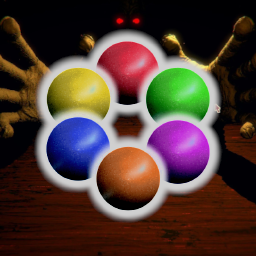
Apart from bosses during act 1 and 3, items from other worlds take the appearance of a normal card from the current act you're playing. The card's name contains the item that will be sent when picked up and its portrait is the Archipelago logo (a ring of six circles). Picking up these cards does not add them to your deck.
When the player receives an item, what happens?
A yellow message appears in the Archipelago logs at the top-right of your screen. An audio cue is also played.
Setup Guide
Required Software
- Inscryption
- For easy setup (recommended):
- For manual setup:
Installation
Before starting the installation process, here's what you should know:
- Only install the mods mentioned in this guide if you want a guaranteed smooth experience! Other mods were NOT tested with ArchipelagoMod and could cause unwanted issues.
- The ArchipelagoMod will create a separate save file when playing, but for safety measures, back up your save file by going to your Inscryption installation directory and copy the "SaveFile.gwsave" file to another folder.
- It is strongly recommended to use a mod manager if you want a quicker and easier installation process, but if you don't like installing extra software and are comfortable moving files around, you can refer to the manual setup guide instead.
Easy setup (mod manager)
- Download r2modman using the "Manual Download" button, then install it using the executable in the downloaded zip package (You can also use Thunderstore Mod Manager which is exactly the same, but it requires Overwolf)
- Open the mod manager and select Inscryption in the game selection screen.
- Select the default profile or create a new one.
- Open the "Online" tab on the left, then search for "ArchipelagoMod".
- Expand ArchipelagoMod and click the "Download" button to install the latest version and all its dependencies.
- Click "Start Modded" to open the game with the mods (a console should appear if everything was done correctly).
Manual setup
- Download the following mods using the "Manual Download" button:
- Open your Inscryption installation directory. On Steam, you can find it easily by right clicking the game and clicking "Manage" > "Browse local files".
- Open the BepInEx pack zip file, then open the "BepInExPack_Inscryption" folder.
- Drag all folders and files located inside the "BepInExPack_Inscryption" folder and drop them in your Inscryption directory.
- Open the "BepInEx" folder in your Inscryption directory.
- Open the ArchipelagoMod zip file.
- Drag and drop the "plugins" folder in the "BepInEx" folder to fuse with the existing "plugins" folder.
- Open the game normally to play with mods (if BepInEx was installed correctly, a console should appear).
Joining a new MultiWorld Game
- Make sure you have a fresh save everytime you start a new MultiWorld! If this isn't your first MultiWorld with Inscryption, press the "Reset save data" button four times in the settings. This should boot you back to the starting cutscene.
- In the game's main menu, open the settings menu.
- If everything was installed correctly, you should see a fourth tab with the Archipelago logo.
- Open the fourth tab and fill the text boxes with the MultiWorld server information (if the server is hosted on the website, leave the host name as "archipelago.gg").
- Click the "connect" button. If successful, the status on the top-right should change to "connected". If not, a red error message should appear.
- Return to the main menu and start the game.
Continuing a MultiWorld Game
Unless the host name or port has changed, you don't need to return to the settings when you re-open the game. Selecting the "Continue" option should automatically connect you to the server. Everything you write in the settings is saved for all future sessions.
Troubleshooting
There is no fourth tab in the settings.
If there is no fourth tab, it can be one of two issues:
- If there was no console appearing when opening the game, this means the mods didn't load correctly. Here's what you can try:
- If you are using the mod manager, make sure to open it and press "Start Modded". Opening the game normally from Steam won't load any mods.
- Check if the mod manager correctly found the game path. In the mod manager, click "Settings" then go to the "Locations" tab. Make sure the path listed under "Change Inscryption directory" is correct. You can verify the real path if you right click the game on steam and click "Manage" > "Browse local files". If the path is wrong, click that setting and change the path.
- If you installed the mods manually, this usually means BepInEx was not correctly installed. Make sure to read the installation guide carefully.
- If there is still no console when opening the game modded, try asking in the Archipelago Discord Server for help.
- If there is a console, this means the mods loaded but the ArchipelagoMod wasn't found or had errors while loading.
- Look in the console and make sure you can find a message about ArchipelagoMod being loaded.
- If you see any red text, there was an error. Report the issue in the Archipelago Discord Server or create an issue in our GitHub.
I'm getting a different issue.
You can ask for help in the Archipelago Discord Server or, if you think you've found a problem with the mod, create an issue in our GitHub.
Credits
Developed by Ballin Inc. :