
Lethal Company
You are viewing a potentially older version of this package. View Latest Version
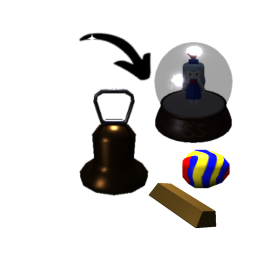

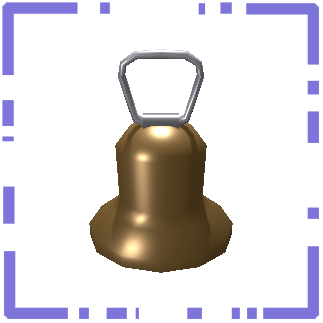
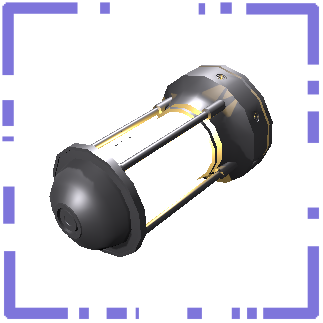
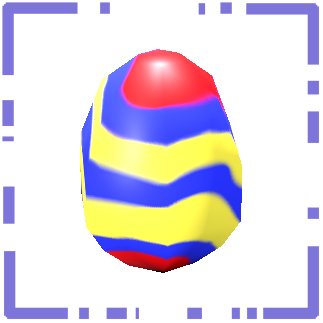
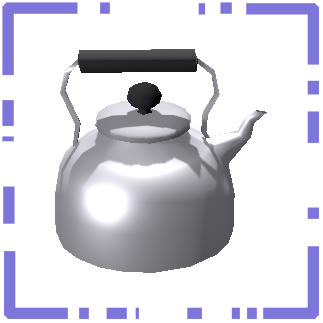
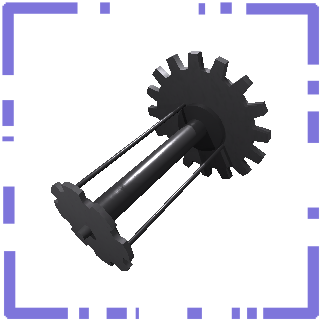
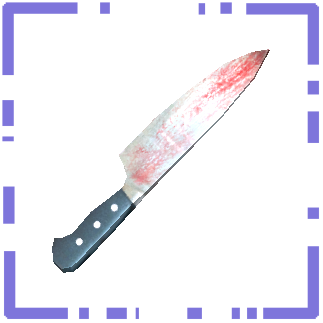
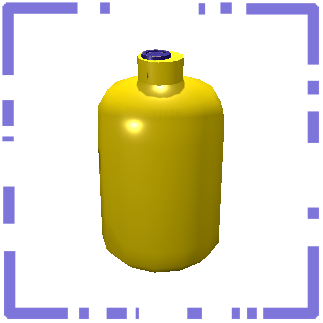
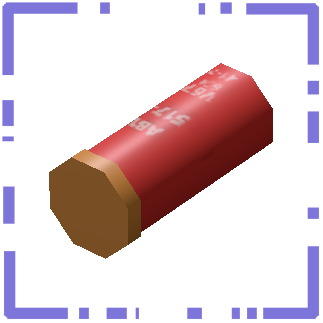
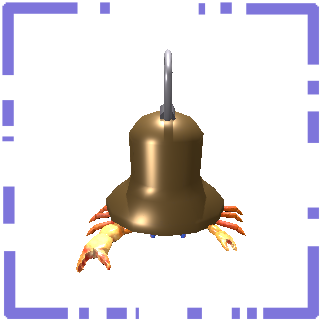
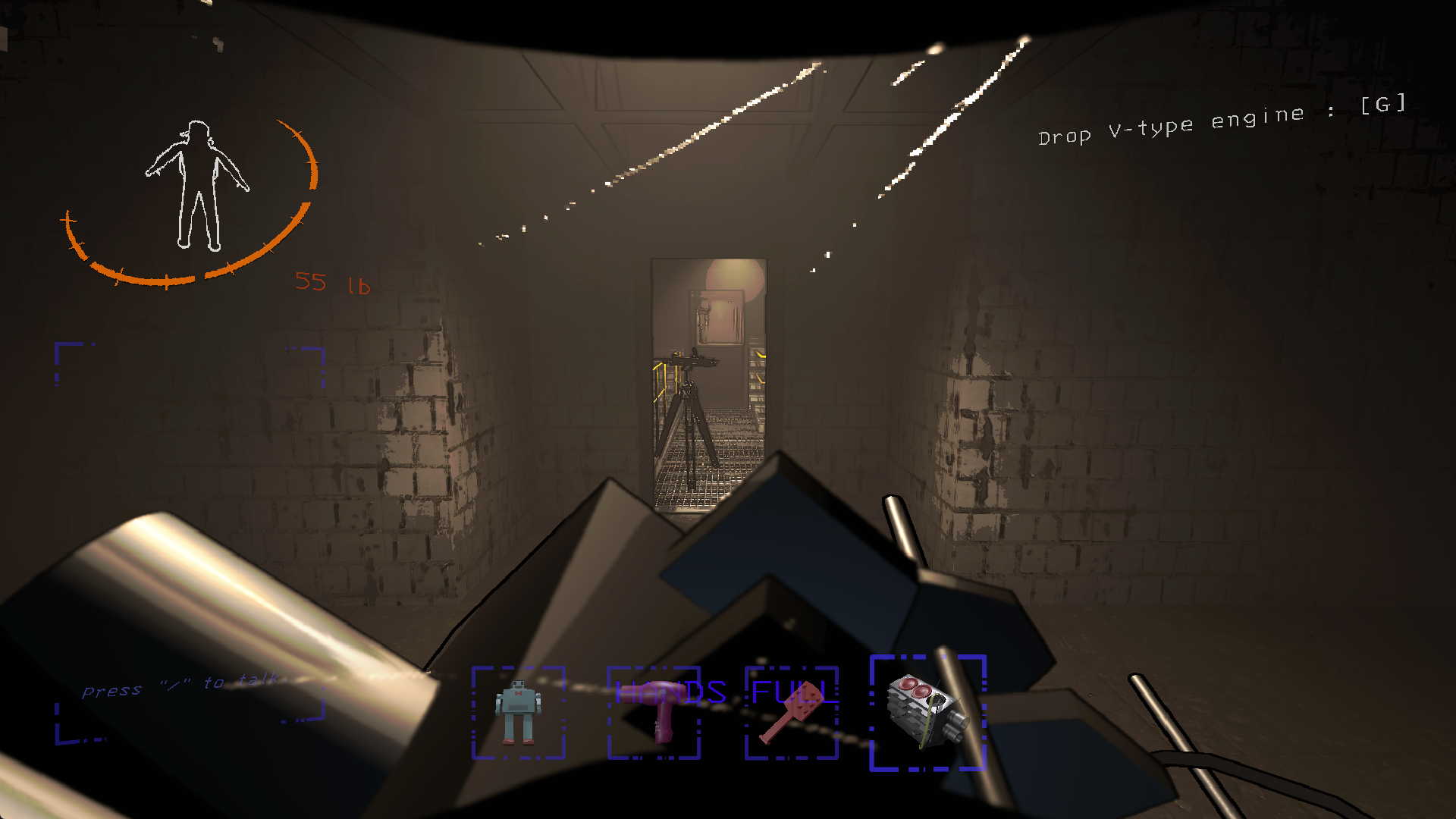
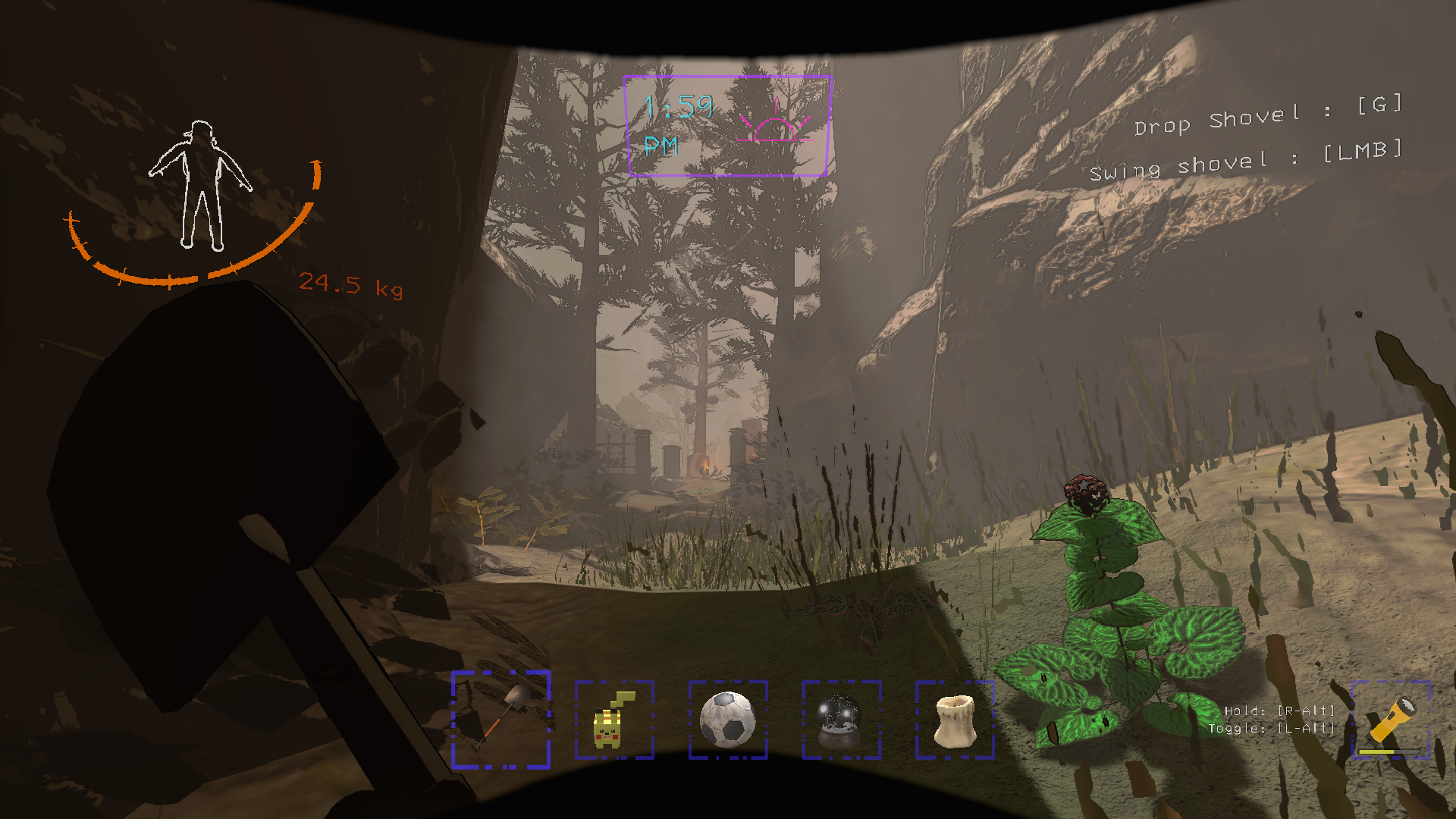
Runtime Icons brings a much-needed update to your hotbar! Enjoy breathtakingly-rendered scrap! With patent-pending technology your suit will scan each item you pick up and place its image on your hotbar so you know what to drop when that friendly neighborhood thumper rolls around the corner!
9/10 employees agree that with Runtime Icons, your productivity goes up up up, and you leave less blood on company scrap, which makes the Company happy!
The first time an item that lacks an icon is spawned, it generates an icon to replace the gear icon in the HUD. These items are placed into the correct orientation (which can be overridden in the config) to properly display an image in the player's hotbar. This means any modded scrap should be compatible! Additional options are provided in the config.
Note: Modded scrap may not render if it has not been built correctly. Modders should refer to the Mod Developer Information section.
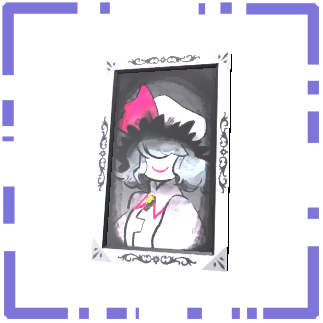
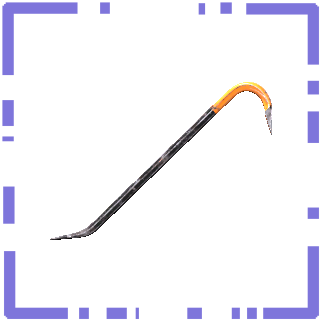
The following options are provided:
Item A: Path/To/Icon A.png, Item B: Path/To/Icon B.pngItem A:x,y,z|Item B:x,y,z, where | is the item separator. A tool is accessible via LethalConfig to combine rotations into a final x,y,z value to use.BepInEx/cache folder. They will be stored in both PNG and EXR, where EXR fully retains specular highlights on transparent objects.

If an item you have created in the Unity editor without assigning an icon does not automatically receive an icon through Runtime Icons, please ensure that the HDRP's Lit Shader Mode is set to Both. This can be found under Edit → Project Settings → Quality → HDRP → Lit Shader Mode. This should be the default mode when using the Lethal Company Project Patcher.
Technical explanation: Due to a limitation in Lethal Company's HDRP settings, rendering a camera directly to a render texture with a transparent background results in an opaque image. To work around this, we have implemented a custom pass to render to a transparent render texture. However, custom passes are only able to render using the Forward mode, meaning that any objects that are built without those shaders will be invisible in the custom pass's output.
You may want to adjust your resting rotation to get a better result. Items will normally be rendered from an angle similar to the perspective of a player that has dropped the item in front of them and then stood back and crouched. This angle will be adjusted somewhat based on the item's dimensions to give the image more depth.
Note: Only the X and Z values of the restingRotation vector of an item are used. To adjust the Y rotation, the floorYOffset should be used instead.

