

Lethal Company


(such quality, wow)
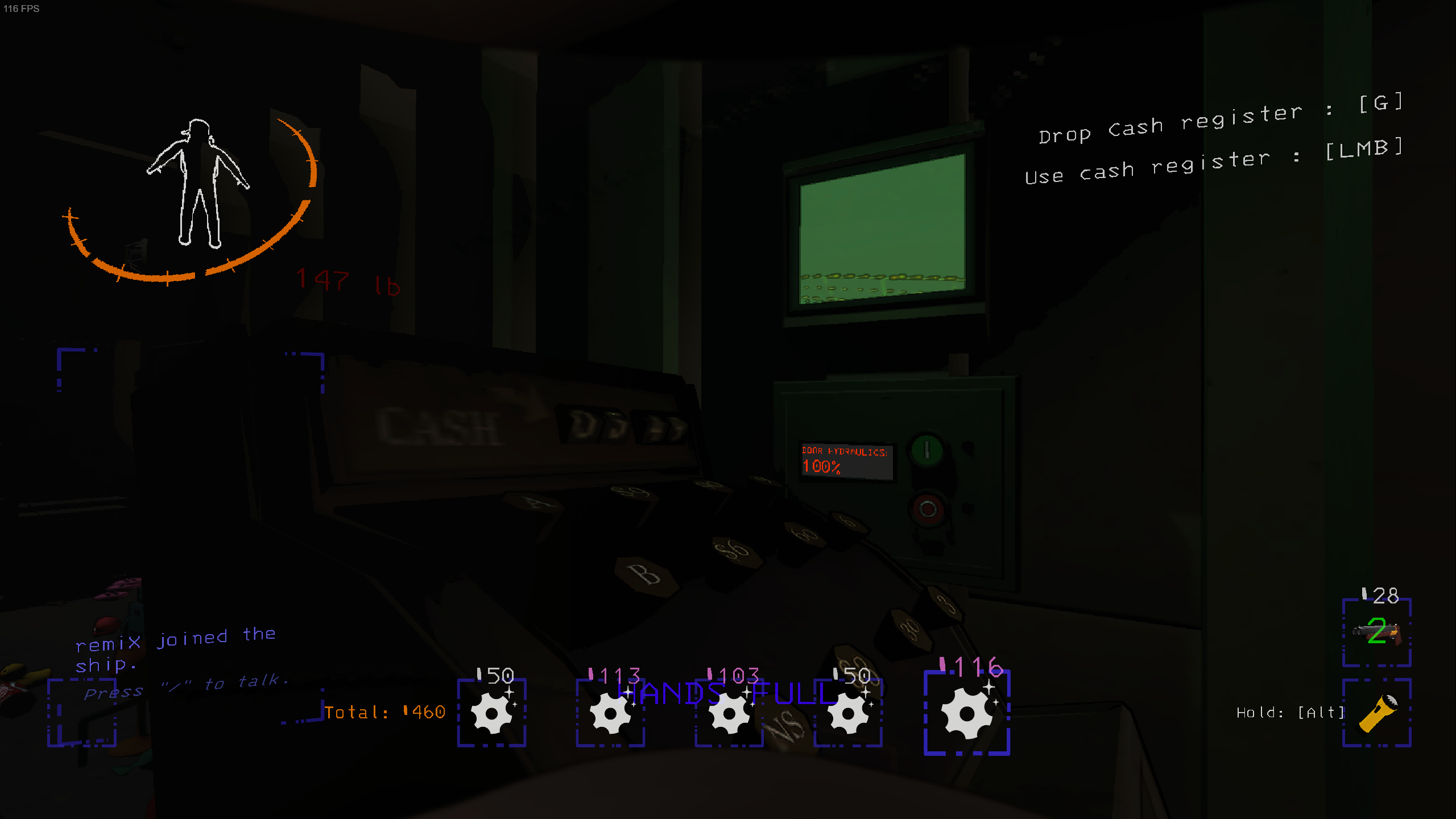
The value of the held scrap is displayed above the item in the inventory. In addition a color palette on the values are used to indicate their worth more generally for quick decision making if you need to leave something behind.
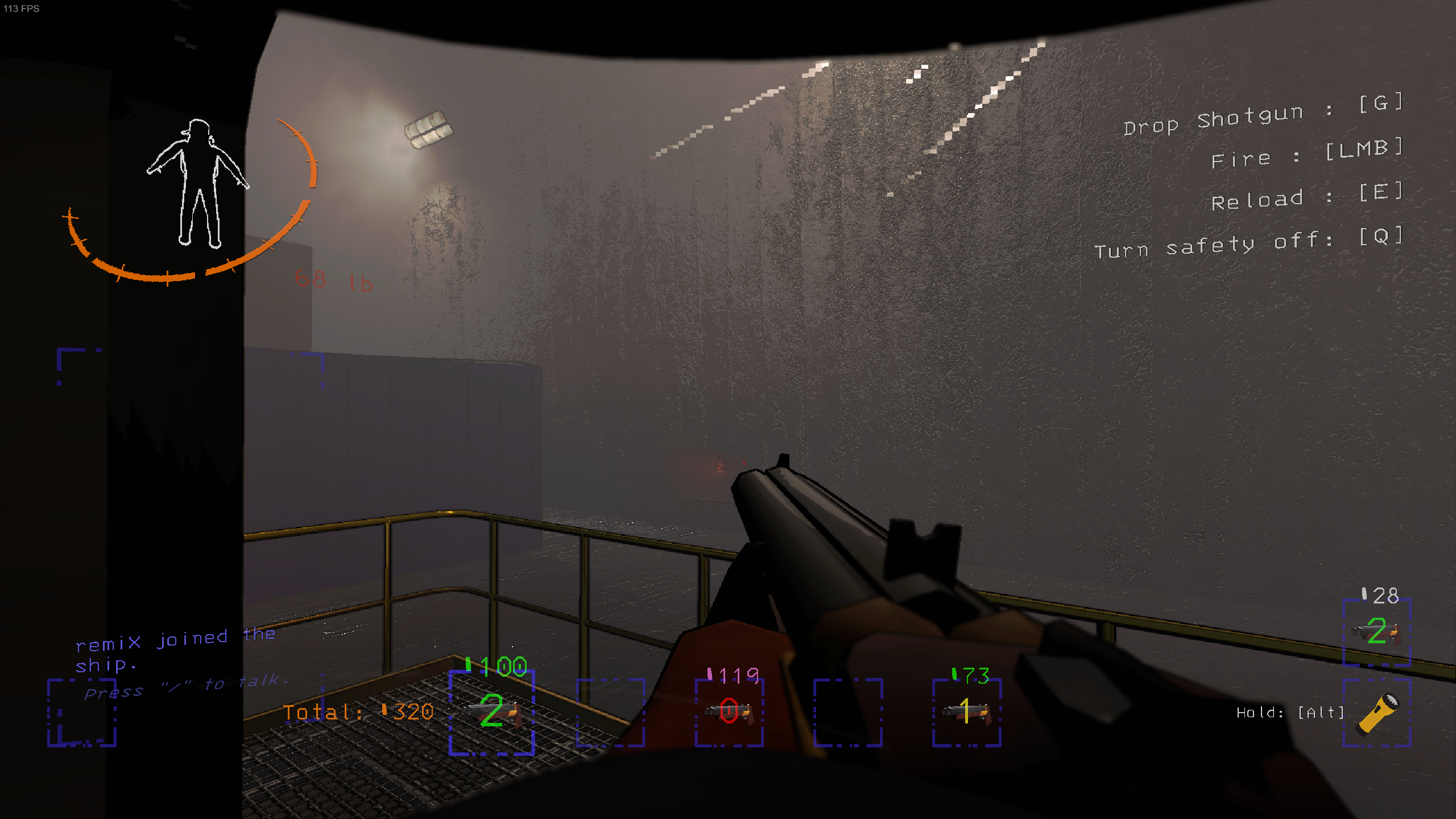
In addition to the scrap value of the shotgun, the inventory slot will in addition show the amount of ammo present in the shotgun.
This is a bit experimental but appears to work from some testing.
A latency display will show on your HUD (default BottomLeft) with your latency to the host. It will not show for the host.
You can configure it to be in either of the 4 corners, including increasing the padding away from the reletive edge.
QualityCompany adds a few commands that let you sell scrap directly from your ship.
You must be landed at The Company Building to use these commands.
These can only be executed whilst landed at the Company Building.
sell all will sell all the scrap on your shipsell quota will attempt to sell enough scrap to perfectly match the amount needed to fulfill quotasell target will attempt to sell enough scrap to perfectly match the amount needed to fulfill specified targetsell <amount>, where amount is any positive integer, will attempt to sell enough scrap to perfectly match that amount
sell 500 will try to sell scrap equal to 500 scrap valuesell <item_name>, where item_name is any portion of an item name to match against. All matching items will be listed
sell whoop will find all Whoopie Cushions on the shipNote: These commands use an approximation for finding a perfect match, it may not find one even if one exists (especially early game where you do not have many scrap of low value).\
You will find a detailed explanation on this upon using the target command in-game.
target <amount> will set a target that is displayed on the monitor from the terminal. This target denotes the target amount of credits you want after selling and leaving the company.
Additionally a "Needed" field appears on the monitor (second from the left) which will tell you how much you need to sell in order to reach your target. This needed value takes into account approximately how much overtime you will earn and how much current credits you currently have.
This means that when you leave the company building you will have the desired amount of credits if you at least meet the "needed" amount.
From here, you may then also use the sell target or sell <amount> to quickly and easily sell and leave The Company Building immediately.
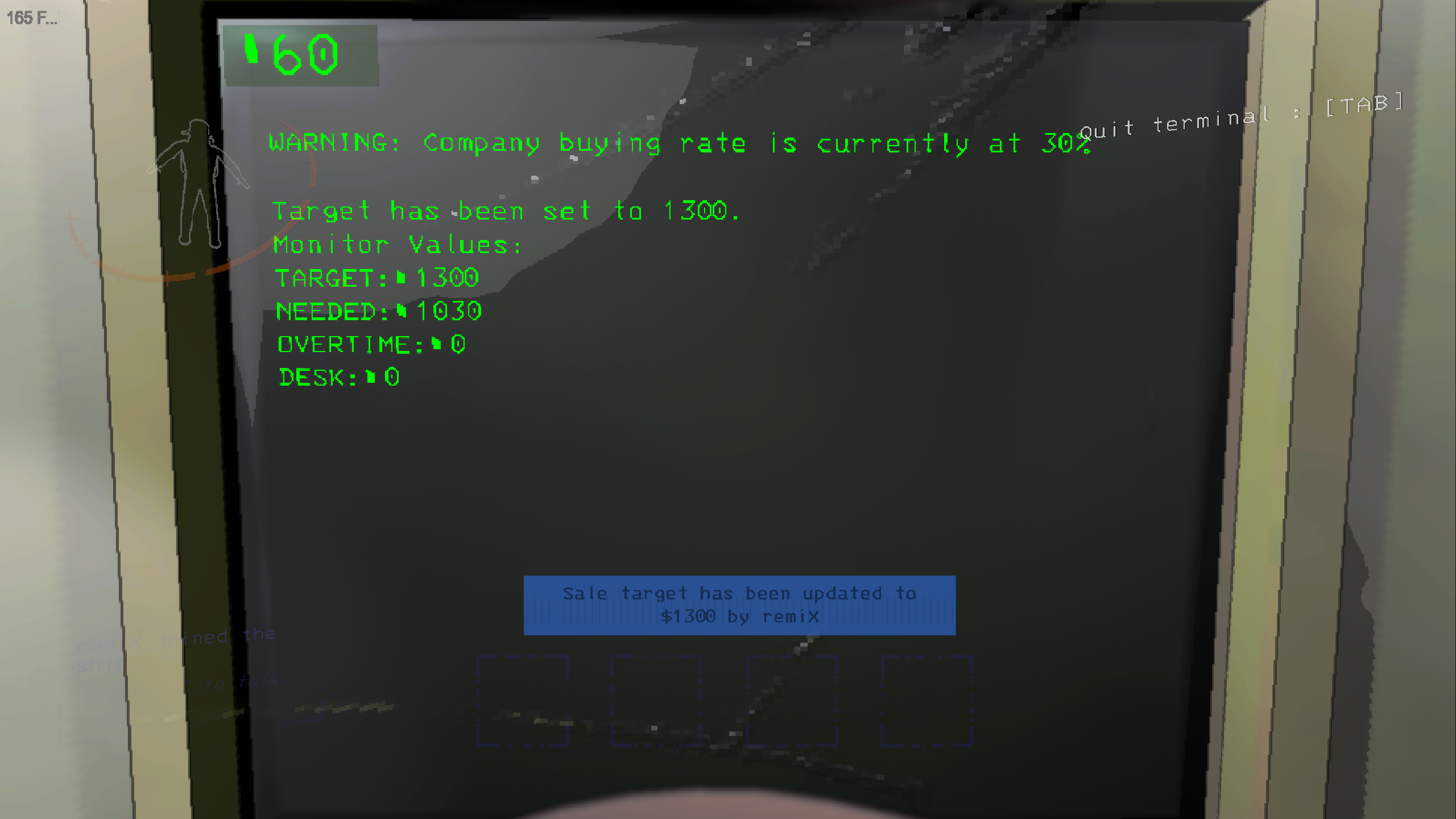
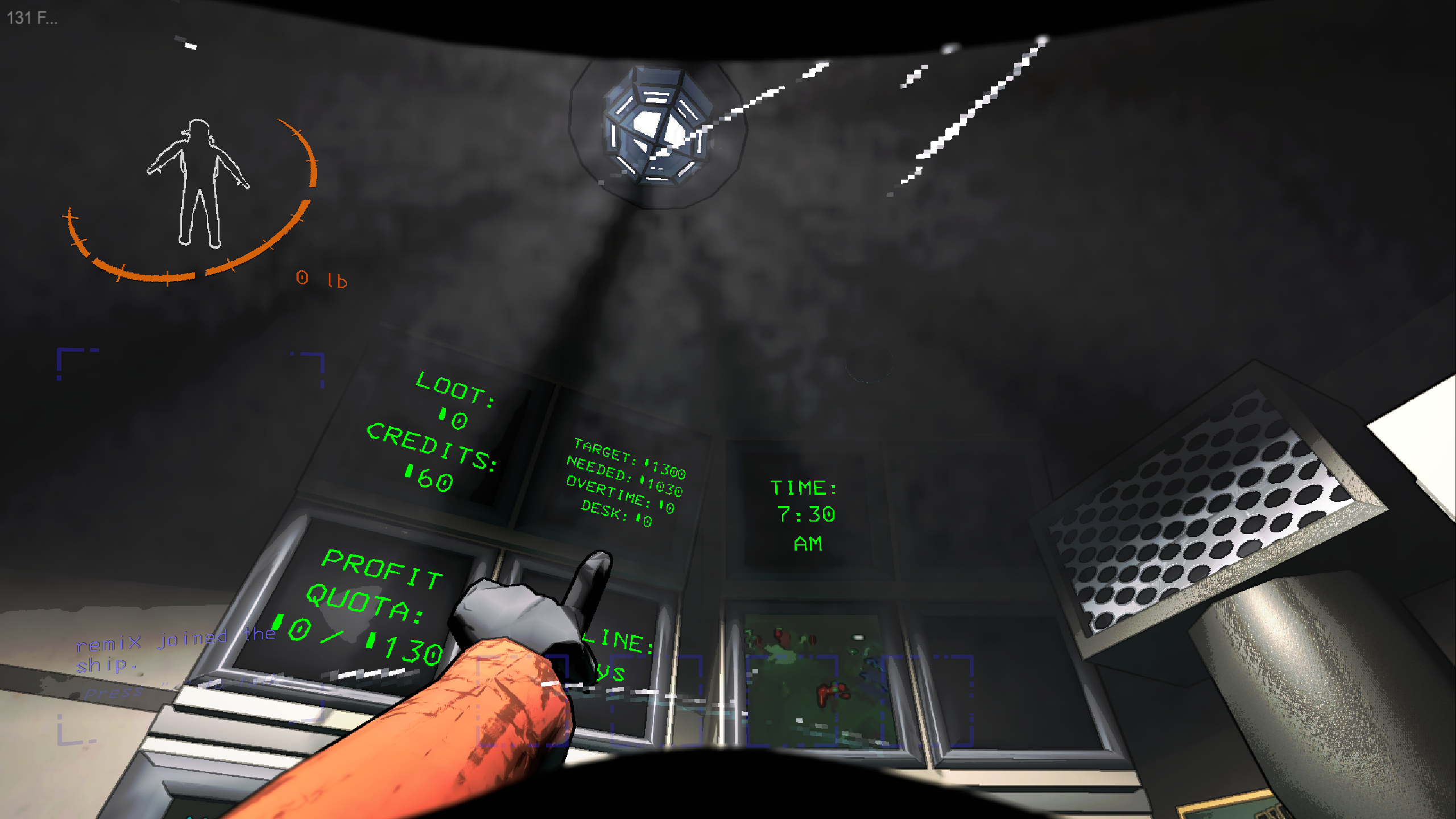
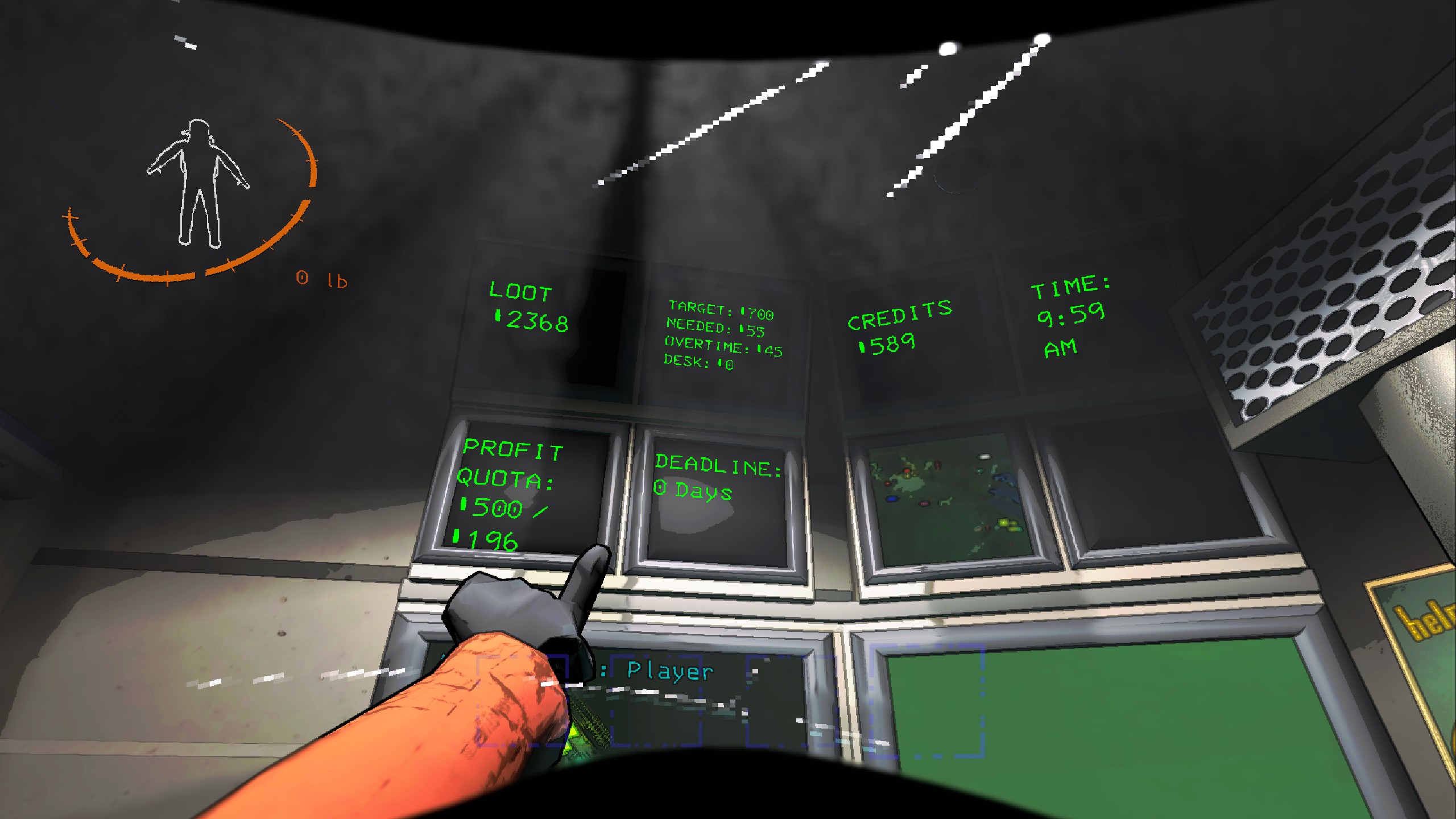
You can find a showcase of this here (you may need to download the video :/).
launch optional additional way of landing or launching the ship from the terminal.
door open or closes the door from the terminal.
lights switch the lights on/off from the terminal.
tp Teleports the currently viewed player, only works if you have a teleporter.
time tells the time without having to look at the monitor or go outside.
HOST ONLY
hack <amount> Spawns specified amount of random scrap at your feet. Meant as a tool for testing.
[CLIENT] Turn on/off debug logs.
DEFAULT: false
[CLIENT] Turn on/off scrap value on the item slots UI.
DEFAULT: true
[CLIENT] Turn on/off shotgun ammo counter on the item slots UI.
DEFAULT: true
[CLIENT] Turn on/off force updating all item slots scrap & shotgun ui on discarding of a held item.
DEFAULT: false
[CLIENT] Delay before creating inventory UI components for scrap value & shotgun ammo. Minimum value will be set to 3 seconds.
NOTE: Useful if you have mod compatibility issues with mods that affect the players' inventory slots such as HotBarPlus, GeneralImprovements, ReservedItemSlot (Flashlight, Weapon, etc)
DEFAULT: 4.5f
[CLIENT] Whether to show the latency HUD or not. Disabled for the host by default. Requires networking.
DEFAULT: true
[CLIENT] How often to do latency update checks. Will be set to a minimum of 2 seconds.
DEFAULT: 5 seconds
[CLIENT] Anchor position to place the latency display.\nPossible values: TopLeft, TopRight, BottomLeft, BottomRight
DEFAULT: BottomLeft
[CLIENT] Horizontal padding for the latency hud display away from the horizontal (left/right) edge of the screen.
DEFAULT: 5
[CLIENT] Vertical padding for the latency hud display away from the vertical (top/bottom) edge of the screen.
DEFAULT: 5
[CLIENT] Turn on/off the ship loot & game credit balance monitor in the ship.
DEFAULT: false
[CLIENT] Turn on/off the info monitor in the ship.
DEFAULT: false
[CLIENT] Turn on/off the time monitor in the ship.
DEFAULT: false
[EXPERIMENTAL!!!] [CLIENT] Turn on/off networking capabilities.
NOTE: This will MOST LIKELY cause de-sync issues with a couple of things, primarily for non-host clients.
DEFAULT: true
[HOST] A comma separated list of items to ignore in the ship. Does not have to be the exact name but at least a matching portion. e.g. 'trag' for 'tragedy' or 'mask' for both 'TragedyMask' and 'ComedyMask'
DEFAULT: "shotgun,gunammo,gift"
[HOST] Turn on/off the additional misc terminal commands. This includes: launch, door, lights, tp, time
DEFAULT: true
[HOST] Turn on/off the additional 'sell <command>' terminal commands. This includes: all, quota, target, 2h, <amount>, <item>.
NOTE: The 'target' sub command will be disabled if TargetCommandsEnabled is disabled.
DEFAULT: true
[HOST] Turn on/off the additional 'target' terminal command.
DEFAULT: true
[HOST] Turn on/off the additional 'hack' terminal command. This allows to spawn <amount> of items at your foot.
NOTE: This is primary for mod testing purposes, but may come in use ;)
DEFAULT: true
[HOST] Turn on/off patch fixing the games' 'scan' command where it occasionally does not work.
DEFAULT: true
You will need:
src/CommonBuildProperties.example.proj in src/
.examplesamples/ directory for some example plugins using Modules & custom Terminal CommandsOther mods may use this to easily add custom simple and complex commands to the terminal.
An example plugin will be made for reference use. For now, you can look at SellCommands to see how the sell commands get setup.