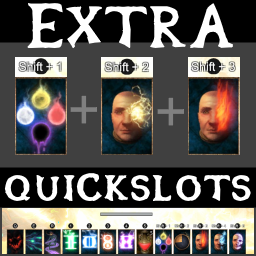
Set the first setting, ExtraQuickSlots, to the amount of Extra Quickslots you want. For example, entering 3 will add 3 quickslots to the existing 8 in the base game for a total of 11.
Restart the game. (Exit and "Start modded" in r2modman again)
Restarting is required whenever this value, ExtraQuickSlots, is changed before it takes effect.
UI / Alignment Options
CenterQuickslotPanel - Just like it sounds, moves the QuickSlot bar to the horizontal center of the screen. You will probably need to make additional adjustments as the QuickSlot and Stability Bars will likely overlap.
QuickSlotBarAlignmentOption
MoveQuickSlotAboveStability: Moves the QuickSlot Bar above the Stability Bar.
MoveStabilityAboveQuickSlot: Moves the Stability Bar above the QuickSlot Bar.
Configuring Hotkeys
The Extra Quick Slots will be at the top of the Quick Slots section of the Keyboard settings.
Configure them to whatever you like, keeping in mind keys may already be assigned elsewhere.
Assign Items or Skills to your new slots.
Known Issues / Conflicts
Vheos Mod Pack
Enabling the "16 gamepad quickslots" under "Quickslots" in Vheos Mod Pack when used with Extra_QuickSlots enabled can cause an infinite loading issue when Continuing a save. There's two work arounds for this.
Disabling the "16 gamepad quickslots" setting Configuration Manager option.
-- OR --
Disabling the [Extra_QuickSlots] Mod in r2modman.
Change Logs
Alpha Version 0.2.0
Fix for infinite load issue when the "16 gamepad quickslots" setting was enabled in Vheos Mod Pack.
UI Config changes.
Changing any UI setting should now be applied without restarting.
ExtraSlotsAlignmentOption renamed to QuickSlotBarAlignmentOption
Additional UI Options for offsetting Quickslot and Stability bars. (requires "Advance settings" to be enabled for now).
All settings, except ExtraQuickSlots, should now be applied without requiring a restart.