

Valheim
You are viewing a potentially older version of this package. View Latest Version
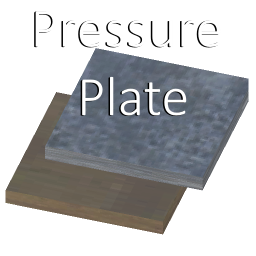
Adds a pressure plate, which opens and closes doors within a range if a player stands on it.
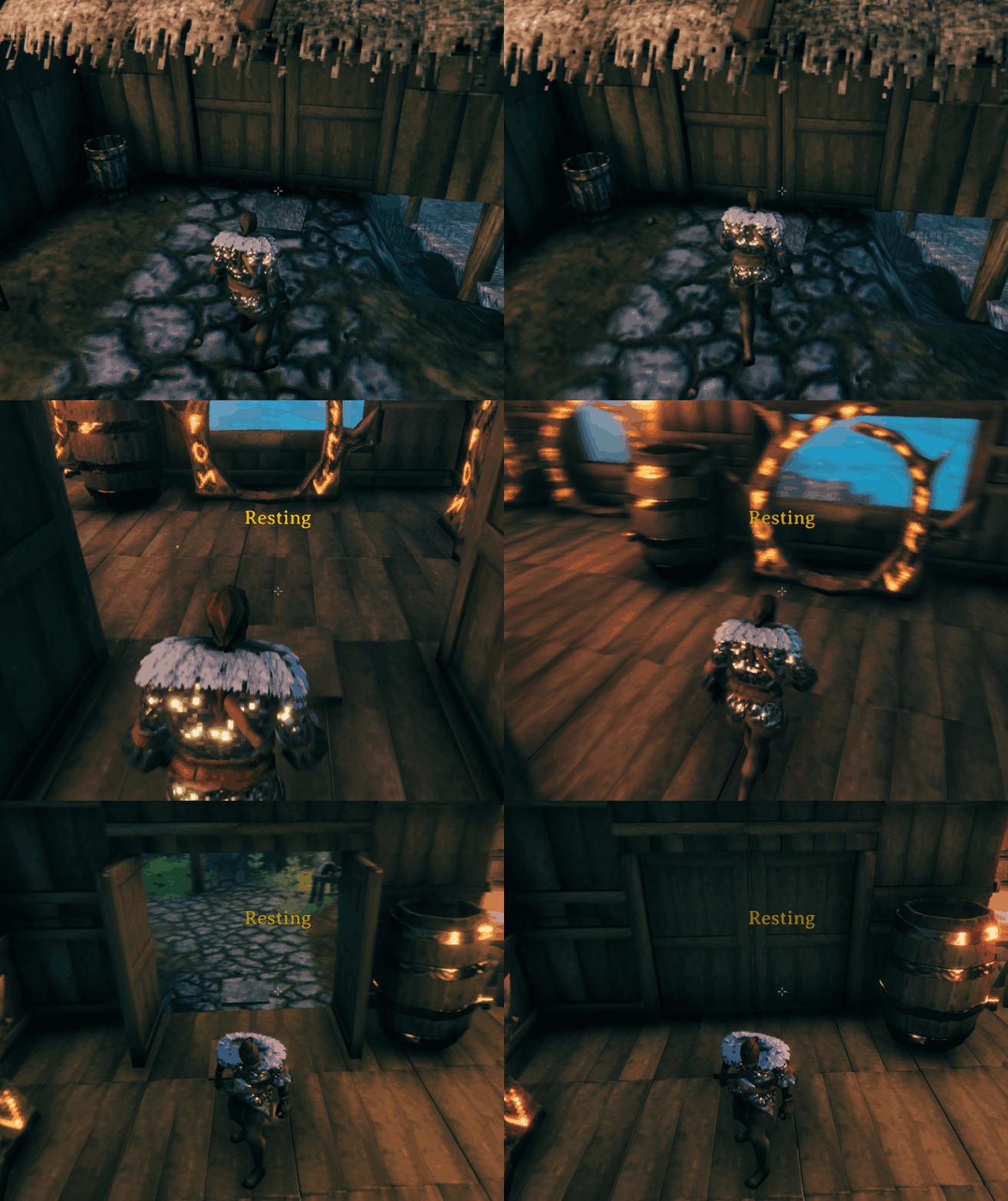
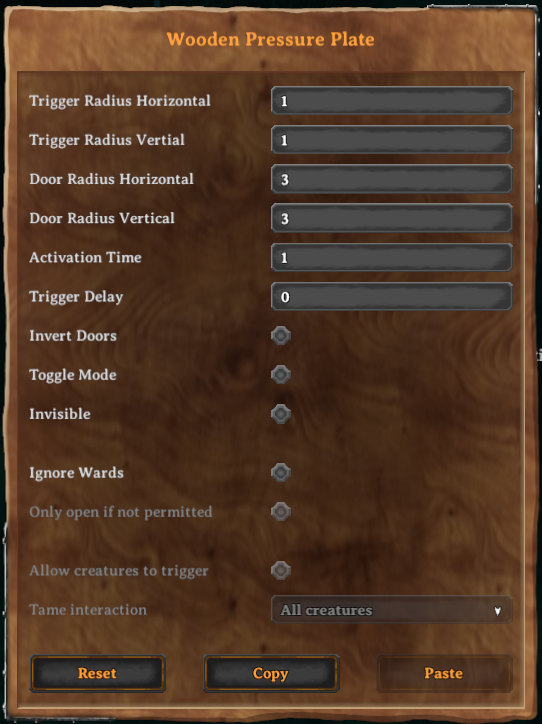
Extract the content of Pressure-Plate into the BepInEx/plugins folder.
Inside the repo are two folders, PressurePlate for the mod and UnityAssets for the Unity files.
Create a file called Environment.props inside the project root.
Copy the example and change the Valheim install path to your location.
If you use r2modman you can set the path too, but this is optional.
<?xml version="1.0" encoding="utf-8"?>
<Project ToolsVersion="Current" xmlns="http://schemas.microsoft.com/developer/msbuild/2003">
    <PropertyGroup>
        <!-- Needs to be your path to the base Valheim folder -->
        <VALHEIM_INSTALL>E:\Programme\Steam\steamapps\common\Valheim</VALHEIM_INSTALL>
        <!-- Optional, needs to be the path to a r2modmanPlus profile folder -->
        <R2MODMAN_INSTALL>C:\Users\[user]\AppData\Roaming\r2modmanPlus-local\Valheim\profiles\Develop</R2MODMAN_INSTALL>
    </PropertyGroup>
</Project>
This requires the publicized Valheim dlls. See here for example: https://github.com/CabbageCrow/AssemblyPublicizer
This step is only needed if you want to compile the AssetBundle.
Place all needed Unity, Valheim and dependencies assemblies in the UnityAssets/Assets/Assemblies folder.
See PressurePlate/PressurePlate.csproj for reference. If some are still missing, Unity prints the name of a missing dependencies to the console.
Build the AssetBundle with the Unity toolbar "Assets/Build AssetBundles" to automatically copy the resulting file to the mod folder.
Custom door settings can be applied for every door type. This can only be done with code and is an optional for other mods. Vanilla items are configurable, too.
Here is a quick instruction:
Add this mod .dll to your assembly references. The next step ensures that everything works if a user doesn't have pressure plate installed.
Check if the mod is loaded:
const string pressurePlateGUID = "com.maxsch.valheim.pressure_plate";
if (Chainloader.PluginInfos.ContainsKey(pressurePlateGUID)) {
    // next steps...
}
This should be done at your plugins Start(). If you use Awake() and your mod is loaded first it may not detect it properly. Any following steps can be done whenever you like, even after the loading phase.
Create the config: DoorConfig config = new DoorConfig();
It takes two optional parameters:
This may requires using PressurePlate;
Add the config to the gameobject:
const prefabName = "your_door_piece_name";
DoorConfig.AddDoorConfig(prefabName, config);
or directly with your prefab
GameObject door = myDoorPrefab;
DoorConfig.AddDoorConfig(door.GetComponent<Door>(), config);
0.4.1
0.4.0
0.3.1
0.3.0
0.2.1
0.2.0
0.1.0
0.0.6
0.0.5
0.0.4
0.0.3
0.0.2
0.0.1
Nexusmods: https://www.nexusmods.com/valheim/mods/498
Thunderstore: https://valheim.thunderstore.io/package/MSchmoecker/PressurePlate/
Github: https://github.com/MSchmoecker/Valheim-Pressure-Plate