

Valheim
You are viewing a potentially older version of this package. View Latest Version
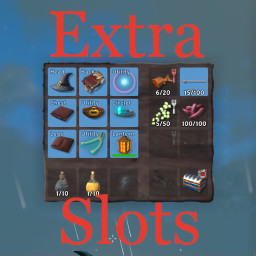
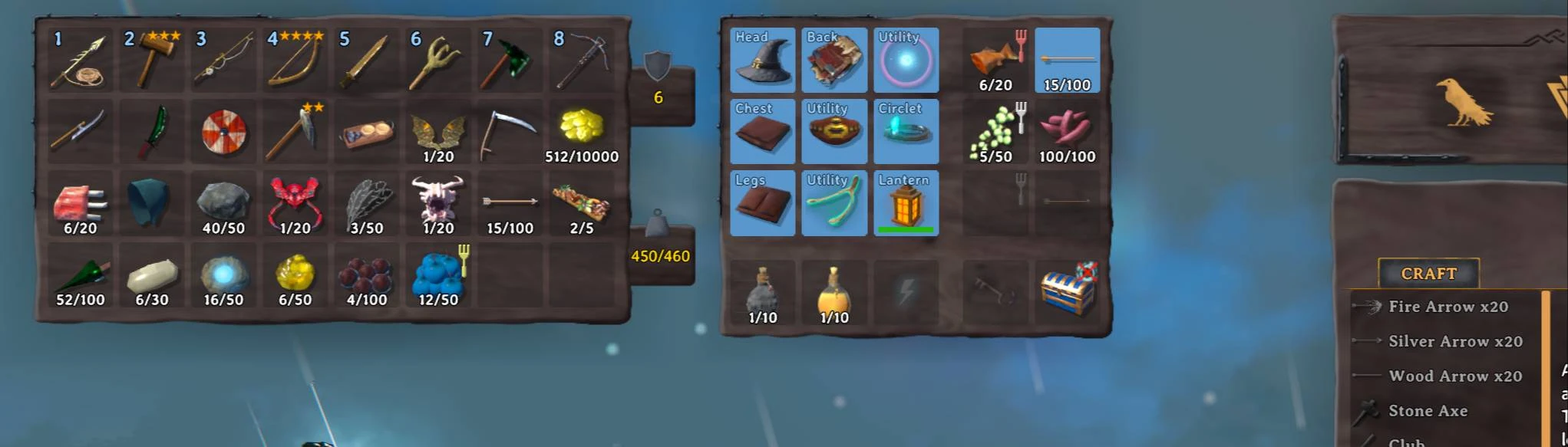
More inventory slots dedicated for equipment, food, ammo and misc items. Extra utility slots. Quick slots. Custom slots API. Player inventory resize. Gamepad friendly. Slot obtaining progression.
This mod expands the player's inventory, not by just adding more rows but by creating extra slots specifically designated for certain types of items.
You are already familiar with equipment slots and quick slots. This mod also adds specific slots for food, ammo and miscellaneous items.
You can add up to 6 quick slots, 3 food slots, 3 ammo slots and up to 2 slots for misc items.
Quick slots and ammo slots will create a dedicated hotbars for quick use.
Miscellaneous items includes quest items, keys, fish, trophies and coins.
You can equip up to 5 utility items simultaneously.
You can add up to 5 extra rows in regular player inventory in case you really need large inventory.
Both equipment panel and hotbars are totally gamepad friendly.
Slots obtaining progression is enabled by default. It means not every slot could be available from the start. It requires obtaining certain items or killing bosses to get more slots.
There is public API to access some mod's functions and to dynamically add up to 9 custom equipment slots which can be enabled/disabled on the fly for it to be part of progression.
This mod is incompatible with other similar purpose mods which singular purpose is inventory management. Valheim Plus is supported yet inventory part is better be disabled. BetterArchery's quiver will be disabled. You will not lose your arrows.
If you had items in slots and then run the game without this mod installed the items will be lost. But you will be able to restore it from automatic backup. Remove incompatible mods, run the game with ExtraSlots installed and your items will be back.
If you just disable EaQS and load this mod you won't see a difference. Your items will be automatically moved into appropriate slots.
In some scenarios items will be moved into regular inventory but highly unlikely.
For backward migration you should clear all extra slots beforehand or you will lose the items.
If you just disable AzuEPI and load this mod you could see some items moved into different slots.
Items from regular equipment slots will be automatically moved into appropriate slots.
Items from quick slots will be moved into quick slots.
Items from custom equipment slots added via API will be moved into most fitting slot or regular inventory if there are none.
If mod that added custom slot compatible with both AzuEPI and ExtraSlots custom API there should be no issues.
For backward migration you should clear all extra slots beforehand or you will lose the items.
You can add/remove custom equipment slots on the fly but most stable way is to do it on Awake.
You should set slot ID as fixed string unique among other slots and you can set slot name as a function which result can be changed on the runtime.
Slot item is validated by function set with slot addition.
You can set other slot IDs for your slot to be added before or after slots with set IDs. You can set specific index for your slot.
Mod can be installed on client only.
If mod installed on a server then client and server versions should be equal.
In case mod installed on a server, some crucial config values will be synchronized from a server:
Everything else is not server synced and can differ on every client. It means you can change appearance and hotkeys as you wish.
Every time you save your character the backup of extra slots current state will be saved with it. You will not lose your extra items.
There is no items history, only last state on extra slots inventory. It will be overwritten on character save.
If you disable this mod and run the game without it you will lose any items that were in extra slots. But slots backup will be there until it is pruned deliberately.
If you want your items back:
Default position of equipment panel is next to inventory. You can change Offset config value to adjust its position.
Gamepad tooltip will be moved under the panel and in case you have huge tooltips there is Gamepad Tooltip Offset config option to change its position too.
You can change panel background image. Put background.png file into ...\BepInEx\config\shudnal.ExtraSlots\background.png. Vanilla resolution is 922x966.
You can change the order of vanilla slots. You can not disable vanilla slots.
You can change layout of equipment slots.
There are 3 options. Imagine you have reqular 5 vanilla slots. It could be positioned in order:
This mod default style
▢ ▢

▢ ▢

▢
AzuEPI style
▢ ▢

▢ ▢

 ▢
EaQS style
▢
  ▢
▢
  ▢
▢
Quick slot and Ammo slots could have corresponding hotkey bars similar to regular 1-8 hotkey bar.
You can change its position and scale.
You can set any hotkey with the same key that is already in use by game and there will be no conflict.
Default ammo slot hotkeys are Left Alt + (1-3). It means if you press Alt + 1 you will not use your regular 1 item from regular inventory hotbar.
Default quick slot hotkeys are Left Alt + (Z-C). It means if you press Alt + X you will not sit. And if you press Alt + C you will not start Walking.
It works for any hotkey.
You can disable slot progression to get all the slots enabled at any moment.
You can change it whatever you want if you have other global keys or item names to create your own experience.
Default progression is designed to gradually get slots the moment you obtain items that fits in particular slot.
You can add more quickslots and set globalkeys or items to unlock.
Tombstone interaction has several configurable options of what items should be auto equipped if tombstone was successfully picked up at once.
Mod is incompatible with other mods altering inventory in similar way or allowing multiple utility items:
To add your own localization create a file with the name Extra Slots.LanguageName.yml or Extra Slots.LanguageName.json anywhere inside of the Bepinex folder. For example, to add a French translation you could create a Extra Slots.French.yml file inside of the config folder and add French translations there.
Localization file will be loaded on the next game launch or on the next language change.
You can send me a file with your localization at GitHub or Nexus so I can add it to mod's bundle.
English localization example is located in Extra Slots.English.json file next to plugin dll.
extract ExtraSlots.dll into your BepInEx\Plugins\ folder
The best way to handle configs is Configuration Manager.
Or Official BepInEx Configuration Manager.